MAX
Editor

Cargando…
Tutorial
Time: 2 min
Needs: Companion
On the projects screen, in the “Upload a video” panel, fill in the video's description and language.
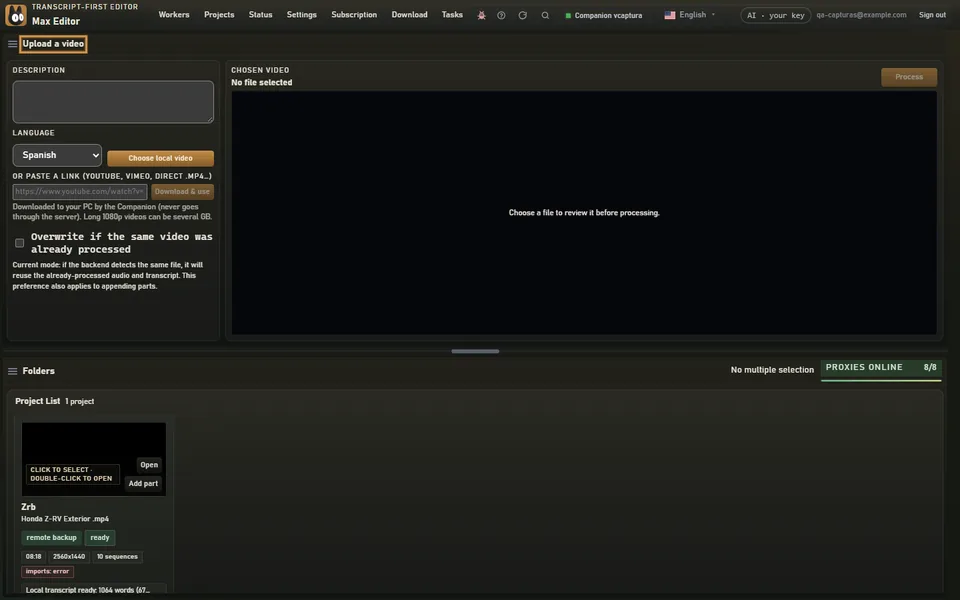
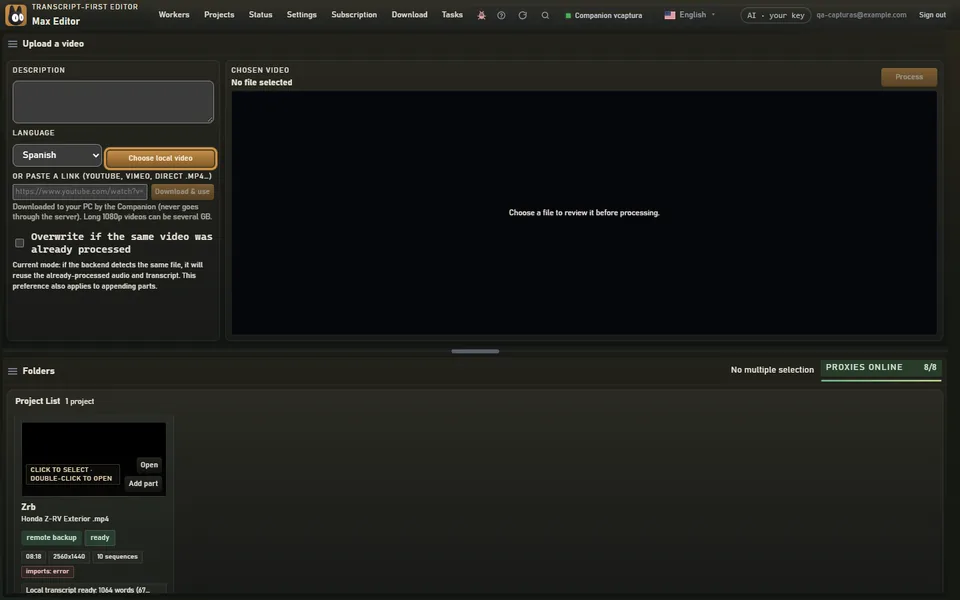
Click Choose local videoo}** and choose the file. With the Companion running, the video stays on your PC and isn't uploaded to the server.
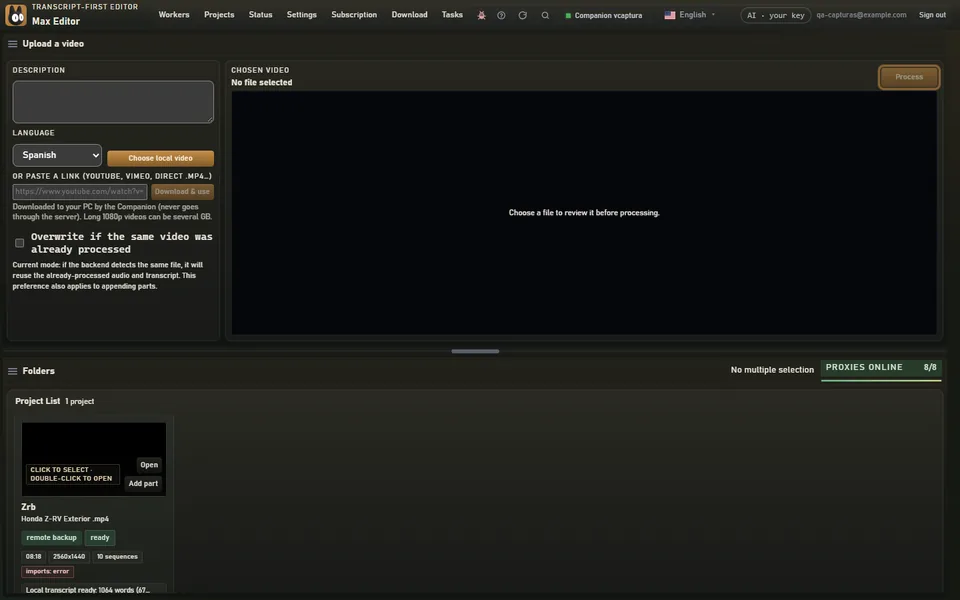
Click Processs}**. The project is created and, with the Companion running, transcription starts automatically.
Everything starts with a project: a video (or several parts of the same recording) with its transcript. Sequences, clips and exports all come from there.
With the Companion running, a field appears where you can paste a YouTube or Vimeo link, or a direct .mp4 link. Paste it and click Download & use: the Companion downloads the video to your PC (it doesn't go through the server) and from then on it works just like a file. Long 1080p videos can take up several GB.
If the Companion isn't running, the panel shows Select video and the video is uploaded from the browser (cloud upload depends on your plan). On an Android phone, use the Max Editor app: it does the heavy lifting on the phone.
You can add another part to the same project: see Add another part to a project.